Google Workspace for Nonprofits Eligibility and Setup
Google Workspace for Nonprofits gives eligible 501(c)(3) organizations a large set of free tools for work, but getting it running takes more than proof of nonprofit status. The path is clearer when teams separate eligibility, Goodstack verification, Google’s review, and technical setup. Preparing for each stage helps avoid false starts and leaves the organization, rather than individual staff members, in control of its email and files.
Why many nonprofits stall before they ever get approved
Older application guides still direct nonprofits to TechSoup. Google’s current verification partner is Goodstack, so those instructions do not lead into the application flow used today. An organization following them can lose time before its application reaches Google’s review queue.
Missing documents and a website that does not clearly identify the nonprofit can delay the process before technical setup begins. These are different problems with different fixes.
What the free nonprofit edition actually includes, and where it stops
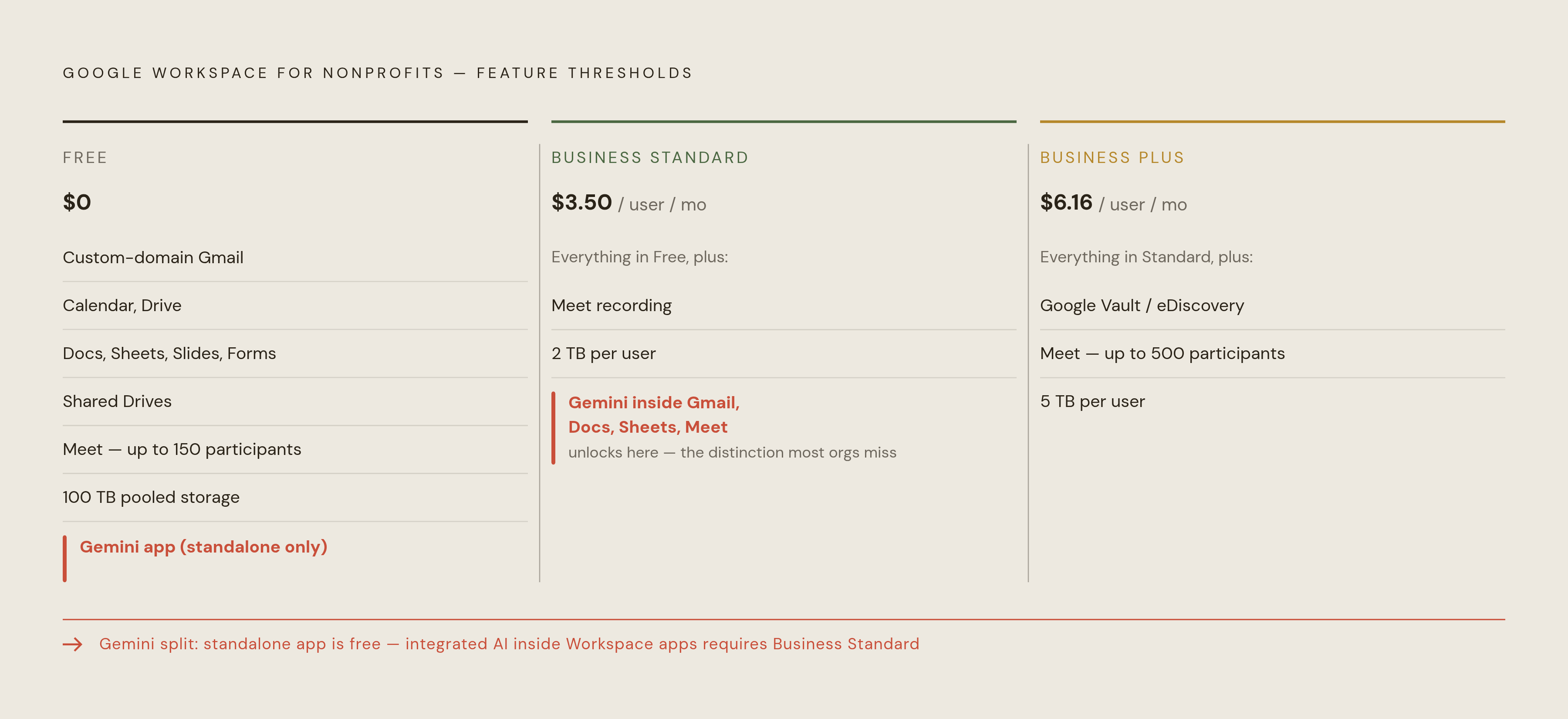
Google Workspace for Nonprofits is a dedicated nonprofit edition. It costs nothing per user and includes custom-domain Gmail, Calendar, Drive, Docs, Sheets, Slides, Forms, Meet, and Google Sites. Shared drives, AppSheet Core, and the Admin Console are also included. The storage allowance is substantial for a free suite. Organizations receive 100 TB pooled across the organization, with no per-user cap, and can have up to 2,000 user accounts, although new accounts start capped at 300 and need support to raise that limit.
The AI offer needs a closer look. Google’s nonprofit support page includes the Gemini app with chat, Deep Research, Canvas, and image generation, plus NotebookLM, Gems, and Gemini Live, with Google’s enterprise data protections. But access to the Gemini app is not the same as Gemini inside Workspace applications. Gemini inside Gmail, Docs, Sheets, and Meet, including writing assistance and meeting note-taking, requires Business Standard or above.
Meet recording is not included, and Google Vault email archiving is only available with Business Plus or above. Advanced endpoint management for personal devices also needs a paid tier. Shared drives are free, but advanced controls over them are not. A team that does not need those features or integrated Gemini can run its full operations on the free edition indefinitely.
Paid tiers and when upgrading makes sense for a nonprofit
Does one missing feature mean upgrading the entire organization? Editions can be mixed within a single organization, so paid access can follow the roles that need it. The free edition includes Meet for up to 150 participants. Many teams can plan around which staff need more than the free Workspace edition offers.
As of October 2026, Business Standard costs $3.50 per user per month on a one-year commitment, with a higher rate for monthly billing. Google describes this as more than 75% off standard pricing. It adds 2 TB per user, Meet recording, and Gemini inside Gmail and Docs. Fundraising and communications staff who want integrated drafting are a practical fit for this tier. Staff who need to record meetings also have a reason to consider it.
Business Plus costs $6.16 per user per month on a one-year commitment, with a higher rate for monthly billing. Google describes this as more than 72% off. It adds 5 TB per user, Meet for up to 500 participants, and Google Vault and eDiscovery, making it relevant to finance or compliance staff with grant-required archiving needs. Enterprise Standard and Plus have discounted pricing on request, with no user minimum or maximum. Enterprise Standard has Meet for up to 500 participants, while Enterprise Plus has room for more.
Who qualifies and who is excluded — including the cases most guides get wrong
Under the 501(c)(3) route, an organization needs qualifying status, but the kind of work it does also affects whether it can join. Government entities at any level are excluded, as are hospitals and healthcare organizations. Schools, colleges, and universities are excluded from this program and are covered by Google Workspace for Education. Nonprofit status alone does not override those exclusions.
Charitable foundations associated with hospitals and philanthropic arms of schools and universities can apply even though their parent institutions are excluded. Google allows private foundations to apply, a useful distinction for applicants who assume another nonprofit program’s restrictions apply here too.
Churches and faith-based organizations that have a denominational group exemption may still qualify. In other countries, eligibility follows the equivalent registered charity status for each country. The program is available in more than 180 countries and regions, so the US documentation route should not be treated as a universal requirement.
What to prepare before starting the application
A fully working website is a precondition. Google’s activation page calls for a site that matches the organization’s name or branding and shows who it is through details such as its address, mission, or charity number. A “coming soon” page does not qualify. A personal landing page that fails to identify the nonprofit clearly can also delay or block approval.
For a US application, have the IRS determination letter confirming 501(c)(3) status, the organization’s Employer Identification Number, and its physical address ready before starting. Missing materials are the most common reason the process takes longer than it should. Preparation gives the verification process the information needed to assess the organization.
The organization also needs a registered domain, such as yournonprofit.org. Do not use a personal Gmail address to apply. The domain will be entered and verified during Workspace setup after approval, so the website requirement and domain verification should not be confused. One establishes a working public presence for the nonprofit, while the other is a technical step in activating Workspace.
How the Goodstack verification and Google review process works step by step
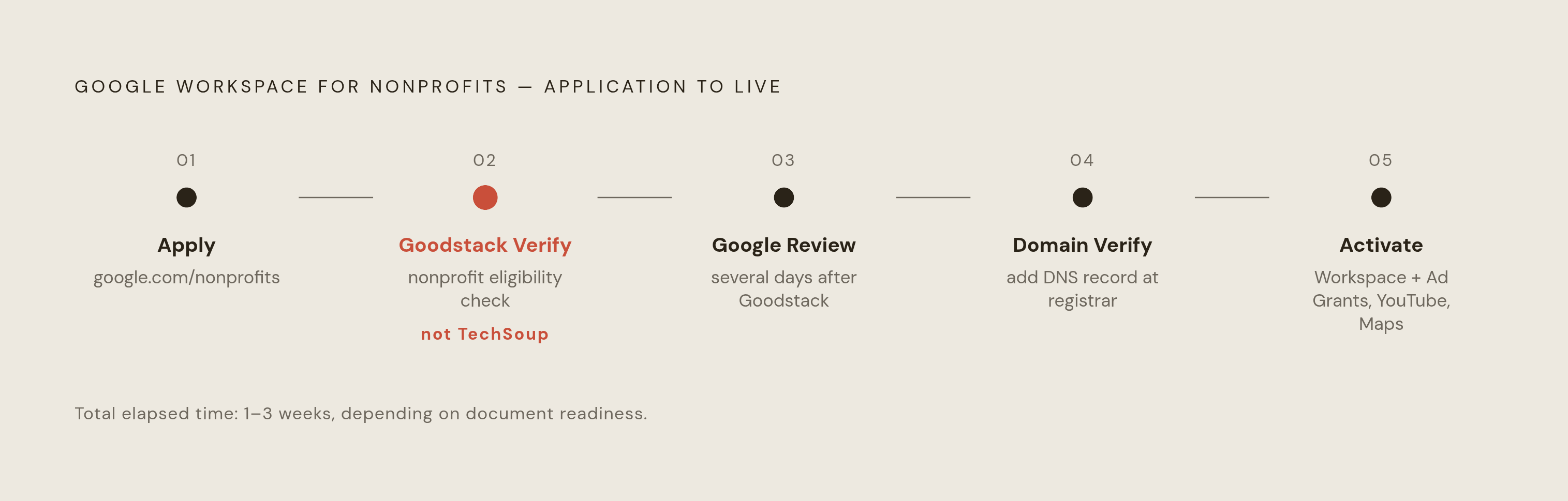
Begin by creating a Google for Nonprofits account at google.com/nonprofits. Goodstack, which used to be called Percent, now handles nonprofit verification. This is the stage older TechSoup instructions get wrong.
Google’s support page says Google sends the email confirming whether the organization has been approved for Google for Nonprofits after Goodstack completes its review. Once verified, choose Workspace in the Google for Nonprofits portal and enter the organization’s domain. New customers receive a 14-day trial at no charge while the review completes.
Next, verify the domain by adding a record at the domain registrar. Google’s review can take several additional days after that verification. The total process, from application to full Google approval, typically takes between one and three weeks, depending on document readiness and review queues. That range is not a promise for an individual application.
Workspace, Google Ad Grants, the YouTube Nonprofit Program, and Maps Platform credits must each be turned on separately inside the Google for Nonprofits account. One verified account opens access to the bundled products, but the organization still needs to activate the ones it intends to use.
Setting up Google Workspace after approval — the migration and configuration decisions that matter
When a staff member or volunteer leaves, the nonprofit needs to retain its email and files and be able to close the account. Think of donor receipts that all point back to an executive director’s personal Gmail address. If that person leaves, communication history and donor relationships can leave with them. Organizational accounts address this continuity risk.
To put that control in place, set up the Admin Console and add the domain. Set up an account for every person before changing mail routing, and set up role addresses such as info@ and donations@ as groups, which do not need separate paid user accounts. Then move old email, contacts, and calendars with Google’s built-in data migration tools. Keep the old accounts open during this work. Give staff time to check that their key Outlook contacts and calendar events have moved over correctly.
After the accounts and migration are ready, change the domain’s MX records to point to Google. New email goes to Google from that moment forward. Send test messages from outside accounts to confirm delivery, then set up SPF, DKIM, and DMARC records. Retire the old system only after every mailbox has moved and mail flows correctly.
Move shared files into shared drives. Files in shared drives belong to the organization rather than their creator, which makes this a succession decision as well as a filing decision. A move from SharePoint/OneDrive or a local file server also requires planning around folder structure and sharing permissions. Copying files is only part of that work.
Security settings to configure immediately after going live
Google Workspace’s defaults prioritize ease of use over security. For a nonprofit handling donor or client data, several settings need attention at setup. Start with multi-factor authentication, which is optional by default. In the Admin Console, open Security, then Authentication, then 2-Step Verification, and turn on enforcement for all users. Allow authenticator apps and hardware keys instead of making SMS the only method, because SIM swapping makes SMS-only authentication weak.
Next, restrict external sharing of Drive files. By default, users can make files public through “anyone with the link” access, which is unsuitable for sensitive donor or client records. In the Admin Console, open Apps, Google Workspace, Drive and Docs, and Sharing Settings. Set sharing outside the organization’s domain to “Off” or “Allowed with warning.” Then address legacy application access under Security and Less secure apps by disabling access, preventing basic-password access from bypassing MFA.
Create a secondary admin account that is not tied to a specific person, such as admin@yournonprofit.org, and store its credentials in a password manager accessible to leadership. Give admin rights to at least two people. This also helps the organization prepare for staff changes, as organizational email and shared drives do, because getting access back can be very hard if the primary admin leaves without handing over control.
Workspace does not keep deleted emails forever by default. If grant compliance or donor record rules require email retention, configure basic retention settings in the free tier or use Business Plus with Vault for full archiving. The distinction between those options should follow the retention requirement.
When to handle setup internally and when outside help shortens the process
A small team with a clear IT lead, a working domain, and a simple email setup can manage the application and basic configuration internally. The process is designed to be self-service. Outside help is more useful when staff already do several jobs and cannot take on weeks of migration work as well. A large volume of email, contacts, and shared files also raises the stakes of a missed migration step.
Compliance requirements can change that calculation further. Grant-required archiving, audit trails, or security controls may need to be correct from day one, while a patchwork of disconnected tools can make Workspace part of a broader technology decision. In those situations, a partner’s understanding of nonprofit operations is relevant to the setup itself. Shared drives need to keep files in the organization’s hands, admin access needs to last through staff changes, and choices about how to set things up need to fit tight budgets. The aim is not simply to get accounts working, but to leave the nonprofit able to operate them after the people who set them up move on.